
Test Odoo Field Service on the phone your technicians use
Run a mobile acceptance test with the actual device, login and job record. Check interruption, corrections and the office readback of completed work.
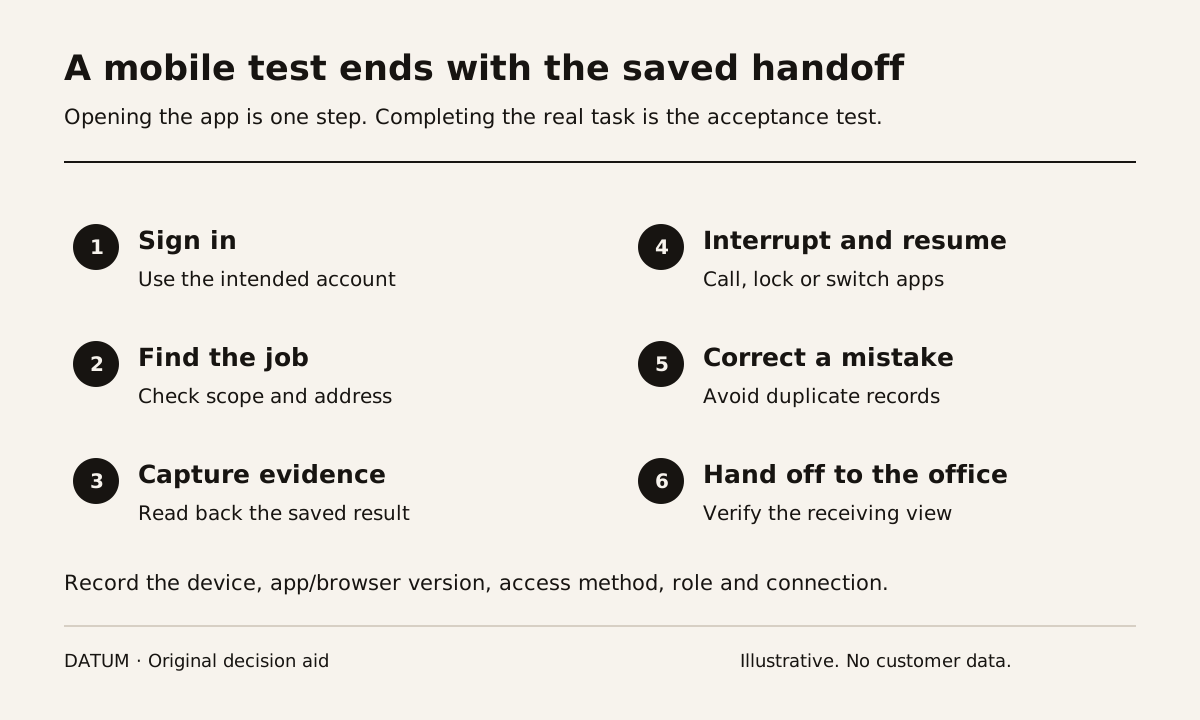
Test Odoo Field Service on the actual device, account and connection that a technician will use. A desktop demonstration does not establish that the person can find the right job, enter required evidence and hand completed work to the office from a phone.
Odoo documents both a progressive web app and store apps, and recommends the progressive web app. The documented authentication capabilities differ: the store apps do not support SSO. Record the chosen access method before comparing test results. Odoo 19 mobile apps.
The exercise below focuses on device usability and completion. For the separate connectivity decision, use the offline readiness guide. Odoo 19's documented offline mode allows previously opened records to be viewed, but not modified; a home-screen icon does not change that limitation. Odoo 19 offline mode.
Write the test identity at the top of the sheet
Record the phone or tablet model, operating-system version, browser or app version, access method, Odoo version and hosting environment. Identify the test user's role and permissions. Record whether the connection is office Wi-Fi, a mobile network or a deliberately disconnected test.
Use a non-production environment and fictional records unless you have approval for a controlled live exercise. Do not photograph customer details just to prove that the camera works. Provide a sample object or an approved blank test document.
Give the technician the goal, not a rehearsed sequence of taps. “Find tomorrow's assigned job and tell the office what you need before leaving” reveals more than directing the person to every button.
Observe a whole job, including an interruption
Use this worksheet to record what happened. A pass means the expected result was observed on the tested combination, not on every phone.
| Task | What the observer checks | Evidence or unresolved issue |
|---|---|---|
| Sign in | Correct account and intended authentication method work | Access method and result |
| Find assigned work | Technician identifies the correct job without seeing unrelated sensitive work | Job reference and role used |
| Read instructions | Address, scope and essential notes are legible without guessing | Missing or awkward fields |
| Capture evidence | Required photo or note reaches the intended record | Saved record read back by the office |
| Correct an entry | Technician can fix a mistake without duplicating the job | Original and corrected result |
| Resume after interruption | State is clear after a call, screen lock or app switch | Lost input or ambiguous save state |
| Hand off completion | Office can distinguish finished, incomplete and waiting-for-review work | Office readback of the status and evidence |
Choose the interruption deliberately. Switch applications after typing a note, return and inspect what remains. Repeat after saving. The difference tells you whether training needs to explain a save step or the interface needs a change.
Do not assume that a checkmark or disappearing spinner proves persistence. Open the record from the office account and verify the saved result there.
Separate a difficult screen from an unclear process
Suppose a fictional plumbing technician can attach a photo easily but does not know which equipment label the office needs. The camera interaction passed. The instruction failed.
Conversely, suppose the instruction is clear but the required field appears below a long section that the technician repeatedly misses. That is a layout or task-design issue worth correcting and retesting on the same device.
Use the Field Service worksheet guide to decide which information belongs in the task. Device testing should not compensate for a worksheet that asks everyone to record everything.
Record the observed difficulty without blaming the user: task, screen, attempted action, actual result and consequence. “Could not find the required serial-number field after opening the job” is actionable. “Needs more training” is not yet a diagnosis.
Retest the exact correction
After changing a label, permission or required field, repeat the failed case with the same starting record and device setup. Then test any nearby action the change could affect. Making a field mandatory, for example, may prevent legitimate work from being completed when the information is unavailable.
End with a device acceptance record that names the tested combination, tasks passed, unresolved issues and fallback procedure. Keep an owner for the next check after an app, browser, operating-system or workflow change. A technician's successful first login is the start of acceptance; the saved handoff to the office is the useful evidence.