
What 'Worksheet Complete' means in Odoo Field Service
Build an Odoo field service worksheet the office can use. Separate saved fields from billing readiness and test five common handoff exceptions.
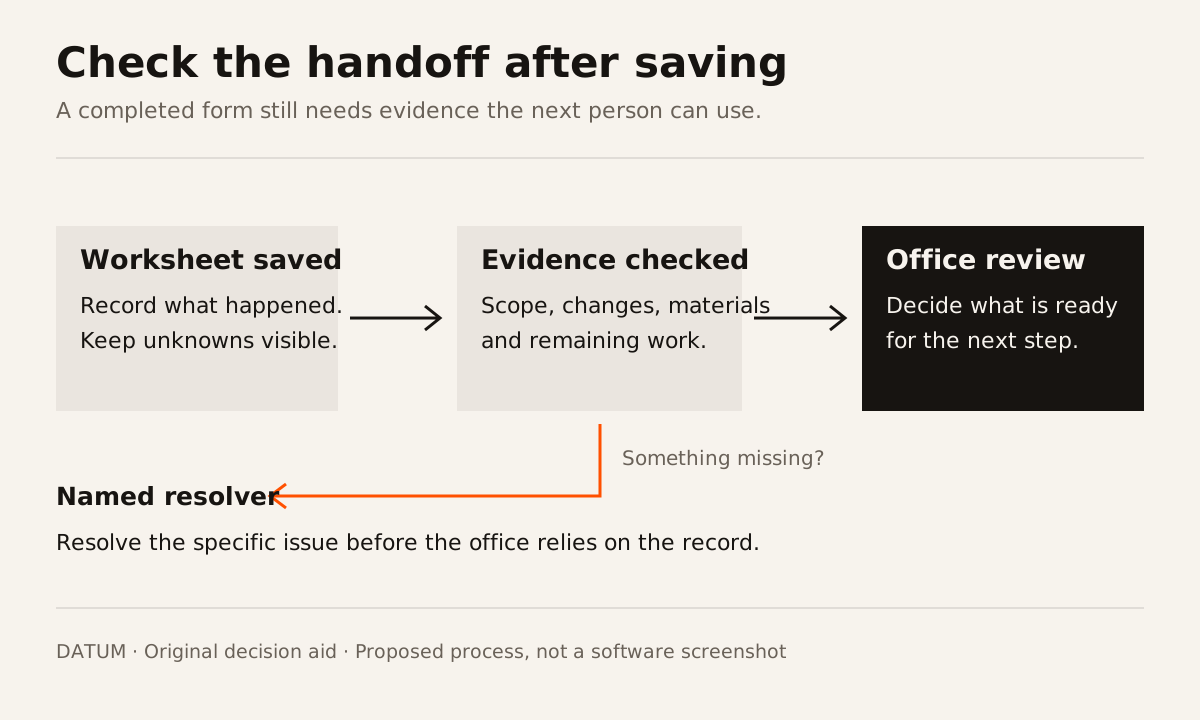
A completed Odoo worksheet does not, by itself, tell the office that a job is ready to bill. In Odoo 19.0, saving a worksheet can change its label to “Worksheet Complete” even when optional fields are empty. Fields marked Required must be filled before saving. That distinction matters when the office depends on the worksheet to understand what happened on site. Odoo 19.0 worksheet documentation.
Define the information the next person needs, give missing information an explicit path, and test the handoff. Start with a small form that technicians can complete accurately.
Choose the evidence the office needs to make its next decision
Consider this fictional service job: a technician replaces a failed valve and discovers that an extra fitting is needed. The worksheet has a work-description field, a photograph and a completion checkbox. The technician saves it. The office can see that someone visited, but cannot tell whether the fitting was installed, returned to the truck or only recommended.
Making every field mandatory could produce a longer form without resolving that question. The useful design work is deciding which record answers it and who supplies that record.
Use this table with the technician and the person preparing the invoice:
| Decision the office must make | Evidence to record | If the answer is missing |
|---|---|---|
| Is the agreed work finished? | Completed scope or a specific unfinished item | Hold for the service lead |
| Was additional work authorized? | Reference to the approved change | Route the proposed charge for review |
| What materials were used? | Product and quantity in the agreed material record | Ask for a quantity check |
| Does another visit remain? | Reason and proposed follow-up owner | Keep the follow-up visible |
| Who checked the handoff? | Reviewer and review date | Leave billing readiness unresolved |
This is a proposed operating worksheet. It is not a statement that these fields already exist in your Odoo database.
Give “none” and “unknown” different meanings
An empty extra-work field can mean there was no extra work, the technician forgot to enter it, or the answer is still being checked. Those situations need different responses.
Where the distinction changes the next action, provide choices such as “No extra work,” “Extra work recorded” and “Needs review.” Keep a short explanation next to the last choice. The reviewer should be able to find the unresolved issue without reading every message attached to the job.
Use required fields sparingly. A technician should be able to report uncertainty honestly. If the form requires a final quantity before that quantity can be known, people have an incentive to enter something merely to continue. A required status can be more useful than a required number that invites a guess.
Write the review rule alongside the field. For example: “Needs review keeps the job in the office's exception list until the service lead resolves it.” Treat that as a requirement to implement and test, not as something a checkbox automatically enforces.
Keep the worksheet and material record connected
A note saying “used two fittings” is not proof that the products were recorded in the billing or stock flow. Odoo's Field Service documentation describes a separate product catalog, enabled through Time and Material Invoicing, for adding products to a task. Odoo 19.0 Field Service product management.
Choose one place where the billable product and quantity are maintained. Use the worksheet for the explanation or supporting evidence where appropriate. During testing, inspect the resulting records instead of assuming that entering the same words in two places connects them.
Also check the plan before enabling a new template workflow. The 19.0 documentation says worksheets use Studio and that enabling the feature installs Studio, which may affect the subscription. Verify that dependency in the intended environment before changing a live project. Odoo worksheet configuration.
Run these five cases before changing the live form
Use synthetic jobs in a test environment. Ask the technician to complete the record and the office reviewer to decide what happens next, without a verbal explanation from the person designing the form.
| Test job | Deliberate condition | Passing result to look for |
|---|---|---|
| Agreed work completed | No change or extra material | The office can identify the completed scope |
| Approved extra work | An approval reference is present | The reviewer can connect the change to the proposed charge |
| Quantity unknown | Material use needs checking | The form preserves uncertainty and names a resolver |
| Return visit needed | One item remains unfinished | Follow-up survives saving the worksheet |
| Entry corrected | A previously entered quantity changes | The office can identify and use the current value |
For each case, record the screen state, saved values, records received by the office, and any extra question the reviewer had to ask. A test fails if the technician can save but the office cannot make the intended decision. It also fails if a technician has to invent an answer to proceed.
Decide who owns the unresolved jobs
A better worksheet still needs someone to review exceptions. Name that person or role, define where pending jobs appear, and decide when they will be checked. Keep the responsibility attached to the job rather than relying on whoever notices a message.
After the test, remove fields that nobody uses and repair the questions that caused confusion. Then try a small permitted set of real jobs and compare the follow-up work on both sides. The form is ready when the technician can tell the truth about the visit and the office can act on it.
If the missing information crosses several teams, use the handoff worksheet to agree who supplies each part before adding more fields.