
Diagnose missing billable items in Odoo Field Service
Separate a missing catalog, an absent product and an invoicing-policy problem. Test the smallest correction under the intended Odoo Field Service role.
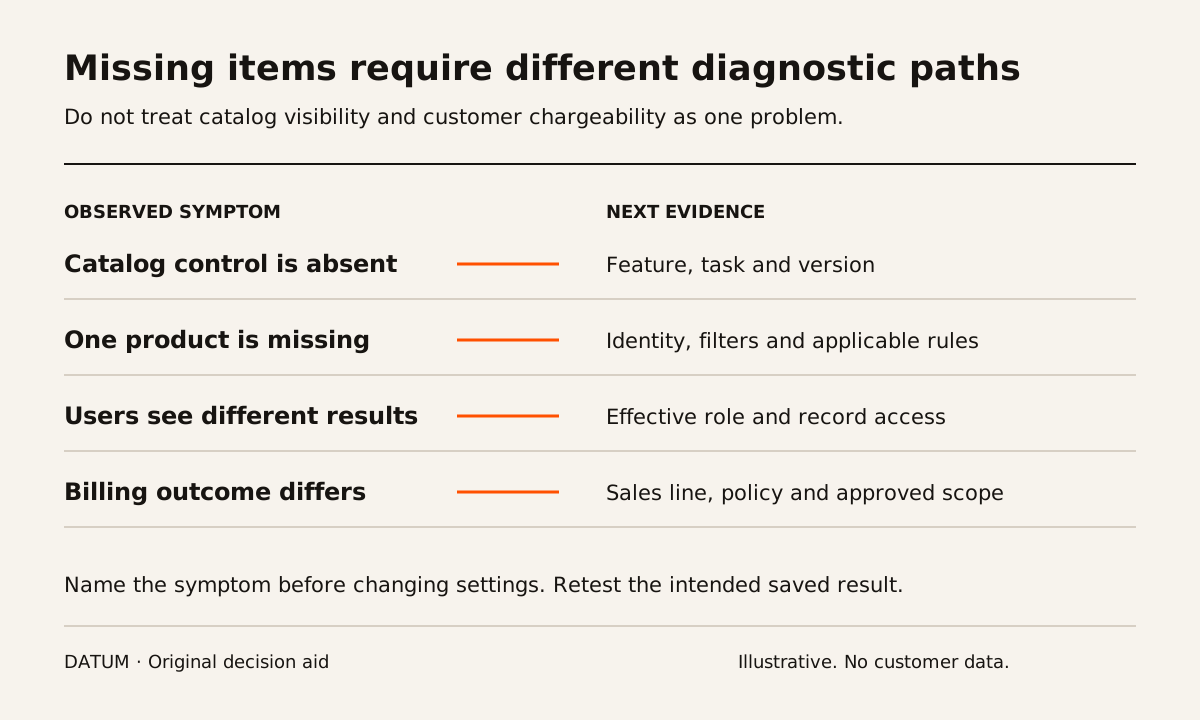
When a billable item is missing from an Odoo Field Service task, first determine whether the catalog is unavailable, a particular product is absent, or the product is present but not invoiceable in the expected way. Those symptoms lead to different checks. Changing invoice policy before identifying the symptom can create a second problem without solving the first.
This diagnostic is written against Odoo 19 documentation. An older forum answer, especially one labeled for another version, is evidence that someone encountered a question; it is not proof that its configuration advice applies to your database.
Odoo 19 documents the Field Service product catalog under Time and Material Invoicing. The documented path adds products through the task's Products control and connects those products to the associated work. Establish whether that documented capability is enabled and present before investigating an individual item. Odoo 19 Field Service product management.
Capture the symptom without changing the database
Write down the Odoo version, hosting, installed applications, task reference, user role and product reference. Record how the task was created and which sales order, if any, is linked to it. Describe exactly what is missing.
Use a test environment for configuration changes. If the issue occurs only in production, collect permitted evidence first and reproduce the relevant conditions. Do not grant broad administrator access to technicians merely to see whether the symptom disappears.
| Symptom | First evidence to collect | Next question |
|---|---|---|
| No product catalog control | Task view and Field Service settings | Is the documented feature available and enabled here? |
| Catalog opens but one item is absent | Product identity and active catalog filters | Does this item meet the catalog's rules in this version? |
| Item appears for one user only | Same task and product under both intended roles | Which effective permissions or record conditions differ? |
| Item is added but billing differs | Related sales line, quantities and invoicing policy | Is the expected charging basis actually configured? |
| Stock result is wrong | Product, quantity and default warehouse | Is consumption recorded against the intended location? |
The table proposes an investigation order. It does not assert that every product type appears in the Field Service catalog or that every symptom has the same setting behind it.
Compare one working item with one missing item
Choose a product that behaves as expected in the same task and under the same user. Compare its configuration with the missing product. Ask the implementer to identify the fields and catalog conditions that matter in the installed version.
Keep product identity, product type, sales availability, company context and relevant filters visible in the comparison. Treat differences as hypotheses to test, not automatic instructions to copy every setting. A service product and a stocked part may intentionally serve different roles.
If the requested item is additional labor, first decide how the business intends to sell and record that labor. Forcing it into a material-catalog path may not be the appropriate design. The Field Service worksheet guide helps separate task evidence from the commercial record that supports billing.
Inspect invoiceability after the item is found
An item appearing on a task does not settle when or whether the customer may be charged. Odoo Sales documents different policies for invoicing ordered and delivered quantities. Review the actual product and related sales line with the billing owner. Odoo 19 invoicing policies.
Check the accepted scope, prior billing and any required approval for an extra. For fixed-price work, use the included-material test before treating a visible item as an additional charge. The goal is to make the intended bill possible, not merely to make a button appear.
Retest the smallest correction
Change one identified cause in the rehearsal environment. Repeat the original task under the intended role and read back the related records from the office account. If the fix changes a shared product, test an ordinary sales case that also uses it so the repair does not silently alter another workflow.
Keep a short resolution record: original symptom, confirmed cause, changed setting or design, test result and remaining boundary. If the cause is an unsupported workflow or a required extension, state that plainly in scope instead of leaving the user with an undocumented workaround.
A useful resolution explains why the item was absent and proves the intended saved result. A screenshot of the item appearing once is incomplete until the office can trace its quantity, chargeability and relevant stock effect.